
How to Add and Manage Audio in the IVRSolutions Panel
Audio messages are the backbone of your IVR system. They are used to greet customers, play menu options, inform callers about waiting times, or deliver important messages during calls. In the IVRSolutions panel, the Audio tab allows you to upload, manage, and assign audio files across your call flows. In this guide, we’ll show you how to add audio and explain why it’s so important for a smooth customer experience.
Audio messages are the backbone of your IVR system. They are used to greet customers, play menu options, inform callers about waiting times, or deliver important messages during calls. In the IVRSolutions panel, the Audio tab allows you to upload, manage, and assign audio files across your call flows. In this guide, we’ll show you how to add audio and explain why it’s so important for a smooth customer experience.
Step 1: Login to Your Admin Dashboard
Login with your admin credentials to access the IVRSolutions dashboard.
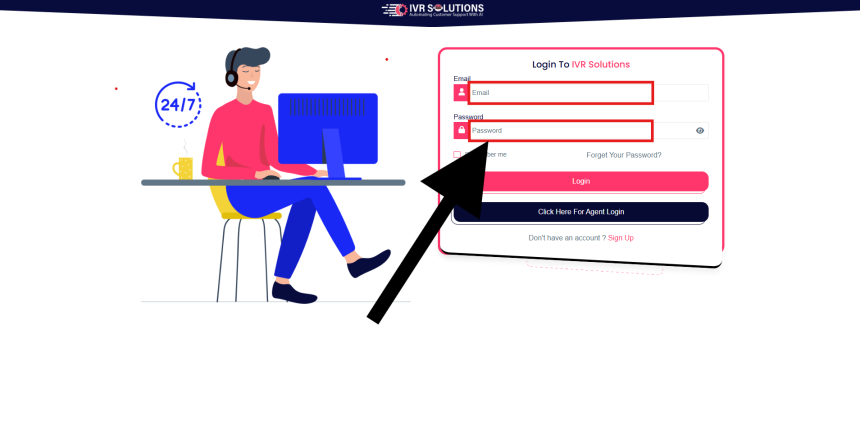
Step 2: Navigate to the Audio Tab
From the left-hand menu, click on the Audio tab. Here you’ll see a list of all existing audio files in your account.

Step 3: Add New Audio
Click on the Add Audio button.
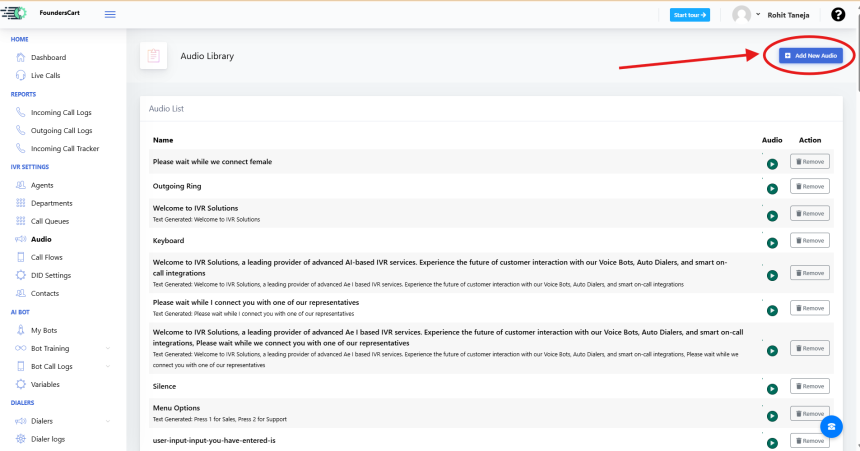
To Generate Your Own Designed Audio:
Enter the required details:
- Audio Name – a clear title for easy identification (e.g., Welcome Greeting).
- Upload Or Generate Audio – Select Upload option if you want to use any WAV file from your system.
Upload File – select an audio file from your system (WAV format only).
Click Save to upload the file.
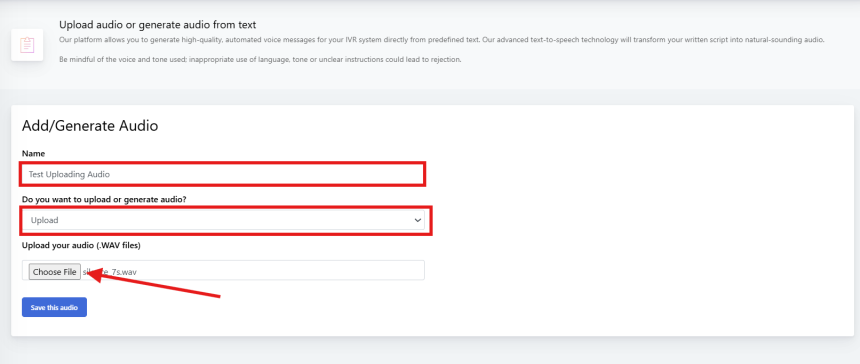
To Generate Audio using text-to-speech:
Enter the required details:
- Audio Name – a clear title for easy identification (e.g., Welcome Greeting).
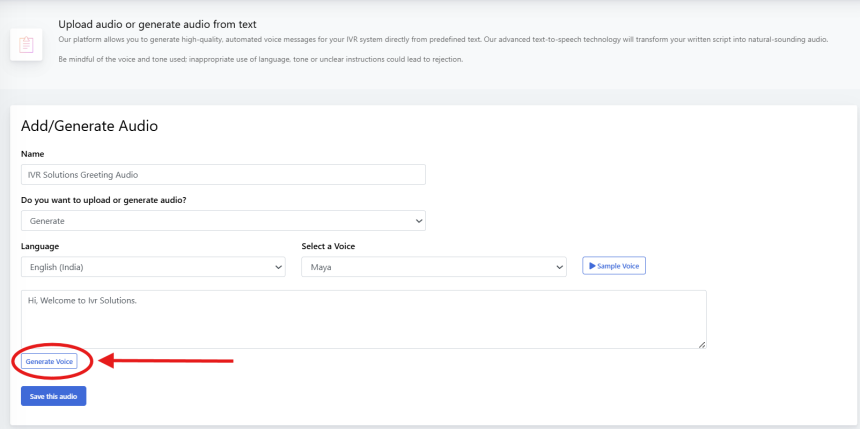
- Upload Or Generate Audio – Select Generate Audio option if you want to generate your audio using Text to Speech option.

Language - Select Language which you want for your audio(Example - English, Hindi, Punjabi, Marathi, etc).

Voice - Select a Voice which you want for your audio(Male/Female with multiple voice options).
You can select and run sample voice to listen to the demo audio to decide your audio file.
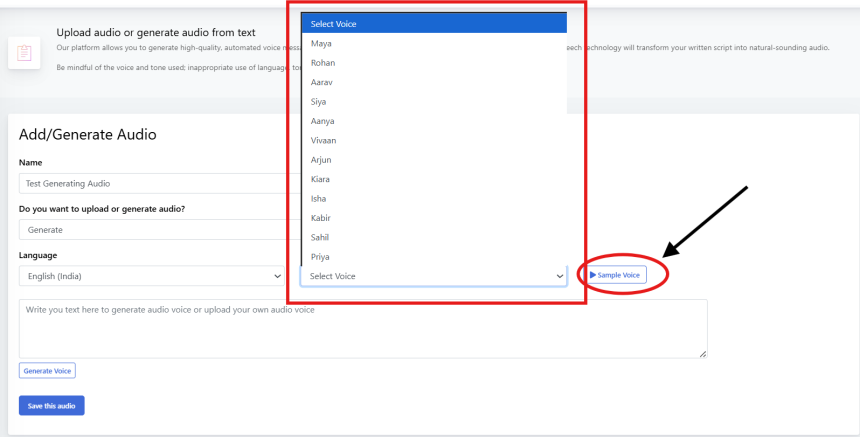
Write Text for which you want to generate your audio.

Click on Generate Voice.
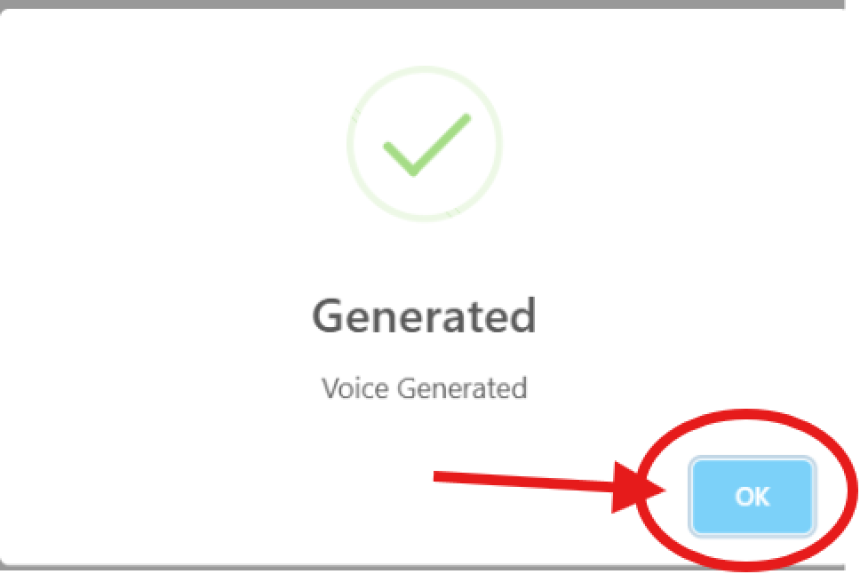
Click OK.
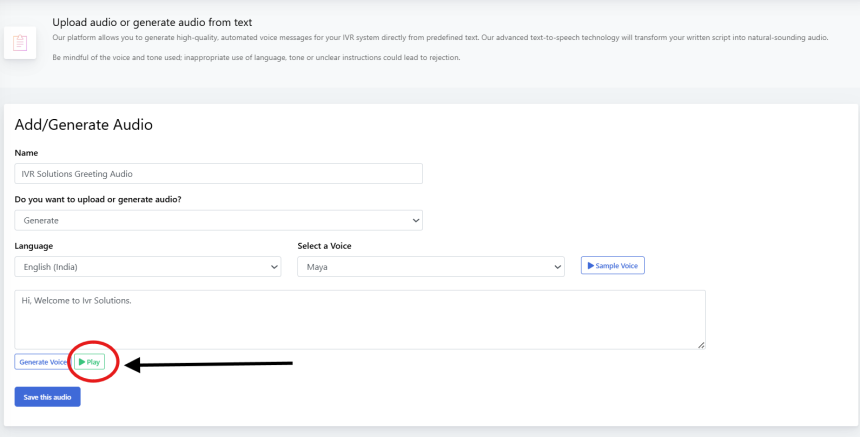
Click on Play button to listen to your generated audio.
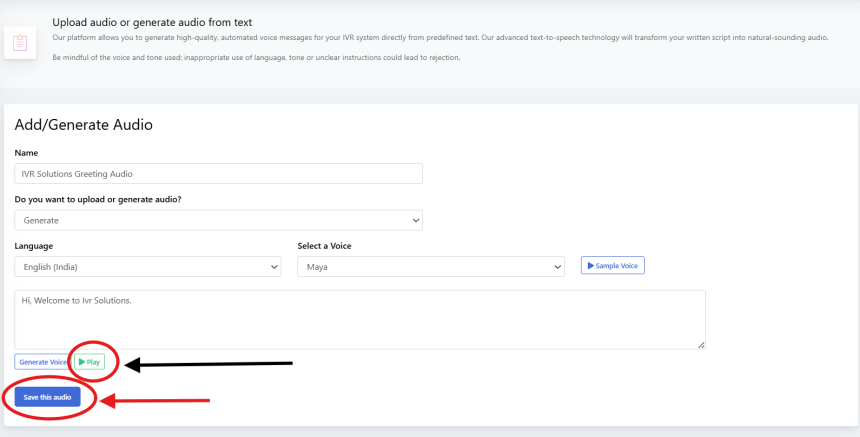
If it's satisfactory, click on Save this audio.
 Step 4: Manage Existing Audio
After adding audio, you can:
- Delete – remove outdated or unused audio files.
- Preview/Play – listen to an audio file before assigning it to a call flow.
Audio plays a critical role in how callers experience your IVR system. It is used for:
- Welcome Greetings – give callers a professional first impression.
- Menu Options – clearly explain choices like “Press 1 for Sales, 2 for Support.”
- On-Hold Messages – play information or music while customers wait.
- Announcements – share working hours, holidays, or important updates.
- Error Handling – inform callers if they press an invalid key or if an agent is unavailable.
With well-structured audio, you can improve caller experience, reduce drop-offs, and maintain a consistent brand voice.
ConclusionThe Audio tab in IVRSolutions gives you full control over how your callers hear and interact with your business. By uploading clear, professional audio files, you ensure that your IVR system is engaging, informative, and effective.
For more tutorials and guides, visit learn.ivrsolutions.in
What to Do When Calls Are Not Working in IVRSolutions
Sometimes you or your agents may face issues where calls are not connecting, dropping, or...
Advanced Call Flow Features in IVRSolutions
While a Basic Call Flow is useful for simple “Press 1 for Sales, Press 2 for Support” menu...
How to Set Up a Basic Call Flow in IVRSolutions
A call flow defines what happens when a customer dials your number. It determines whether...
How to Use the "Login as Agent" Option in Your IVRSolutions Panel
Sometimes, administrators need to see exactly what an agent is experiencing inside the IVR...