
How to Add and Manage Departments in Your IVRSolutions Panel
Departments help you organize your call center or business team into functional groups such as Sales, Support, Billing, or Technical Team. By creating and managing departments, you can assign agents to the right group, route calls efficiently, and monitor performance department-wise. In this guide, we’ll walk you through how to add and manage departments in your IVRSolutions panel.
Departments help you organize your call center or business team into functional groups such as Sales, Support, Billing, or Technical Team. By creating and managing departments, you can assign agents to the right group, route calls efficiently, and monitor performance department-wise. In this guide, we’ll walk you through how to add and manage departments in your IVRSolutions panel.
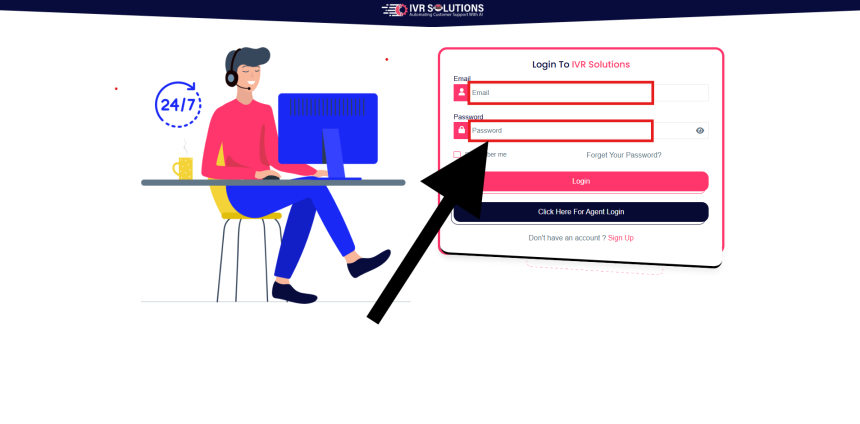
Step 1: Login to Your Admin Dashboard
Login with your admin credentials to access the IVRSolutions dashboard.
Step 2: Navigate to the Departments Section
In the left-hand menu, click on Departments. This section shows you all existing departments in your account.

Step 3: Add a New Department
- Click on the Add Department button.
- Enter the department details such as:
- Department Name (e.g., Sales, Support)
- Description (optional, for clarity)
Call Type:
Choose how calls should be distributed within the department:
- Parallel – All agents in the department will receive the call simultaneously. The first one to answer connects with the caller.
- Sequential – Calls will ring one agent at a time in the order they are listed, until one answers.
Sticky Agents
- Yes – Repeat callers will always be connected to the same agent they spoke with earlier, improving continuity and customer experience.
- No – Calls will be distributed based on your chosen call type (Parallel or Sequential), regardless of past interactions.
Ringing Time: Define how long each agent’s phone will ring before the system moves to the next step (in Sequential mode) or before marking the call as missed. Options include:
- 10 seconds
- 20 seconds
- 30 seconds
- 40 seconds
- 50 seconds
- 60 seconds
Choose the ringing time that best matches your team’s workflow. For example, 20–30 seconds works well for most setups, while 60 seconds can be used for dedicated lines.
Map Agents – select which agents belong to this department(write in sequence if you're using Sequential call type.
3. Click Save to create the new department.


Step 4: Manage Existing Departments
Once departments are created, you can:
- Edit Department – update the name, description, or agents assigned to the department.
- Delete Department – remove a department that is no longer needed. (Note: Agents will not be deleted, only the department grouping will be removed.)
- Reassign Agents – move agents from one department to another as your team structure evolves.
Step 5: Use Cases of Departments
Organizing agents into departments makes your call flow more efficient. Some common uses include:
- Routing Calls Smartly – Direct incoming calls to the correct team (e.g., sales calls to Sales department, support calls to Support).
- Better Monitoring – Track agent performance by department for easier reporting.
- Clear Workflows – Reduce confusion by ensuring every call goes to the right functional team.
Conclusion
Departments are a powerful way to structure your IVRSolutions panel, making call distribution more organized and improving customer experience. By regularly managing departments and assigning agents correctly, you can streamline operations and ensure calls always reach the right people.
For more tutorials and guides, visit learn.ivrsolutions.in
Advanced Call Flow Features in IVRSolutions
While a Basic Call Flow is useful for simple “Press 1 for Sales, Press 2 for Support” menu...
How to Add and Manage Audio in the IVRSolutions Panel
Audio messages are the backbone of your IVR system. They are used to greet customers, play...