
Advanced Call Flow Features in IVRSolutions
While a Basic Call Flow is useful for simple “Press 1 for Sales, Press 2 for Support” menus, the Advanced Call Flow in IVRSolutions takes things much further. It allows you to add conditions, validate callers, integrate APIs, transfer calls smartly, and even trigger external services like WhatsApp or email. In this blog, we’ll explain every feature available in Advanced Call Flows and how they can help you build smarter caller journeys
Let's explain each feature one by one:
User Inputs
- Allow callers to interact using keypad or voice commands.
- Examples:
- Button Menu: “Press 1 for Sales, Press 2 for Support.”
- Voice Menu: Saying “Order Status” transfers to the Support team.
- Speed Dial: Let user directly dial desired extension number to connect to agent.
- Get Long Input: Entering a 4-digit PIN to validate the caller’s account or asking for user's registered mobile number or card number, etc.

Button Menu
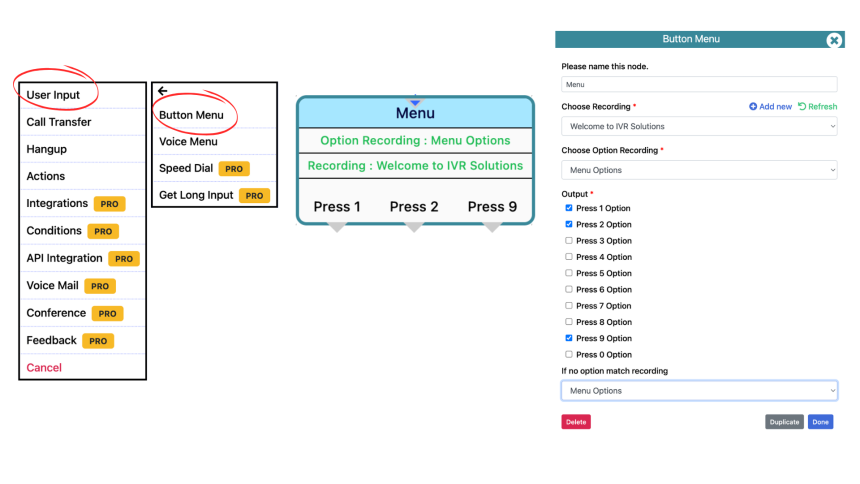
A Button Menu allows a caller to interact by pressing numbers on their phone keypad. Each button corresponds to a specific action — like routing to a department, validating an account, or connecting to an operator.
Example:
- Press 1 for Sales
- Press 2 for Support
- Press 9 to speak with the Operator
👉 This is especially useful for businesses where callers need to quickly choose a department.

Configuring Button Menu in User Inputs
- Add Name to this Node: Add a name for this button/node.
- Choose Recording: Select the greeting recording for this particualar node.
- Choose Option Recording: Select the recording for menu options in this. (Example: Press 1 for Sales, Press 2 for Support)
- Output: Select options which you want to give to your caller.(Press 1 option/ Press 2 options/ Press 9 option)
- If no option match recording: Select recording to play if customer presses wrong input.
Voice Menu
Speech Inputs let callers say a word or phrase instead of pressing a button. For example, a caller can simply say “Connect Customer care” and the system will route them to the Support department.
Benefits:
- Faster for customers who don’t want to use keypads.
- More natural experience (suitable for mobile users, drivers, elderly callers).
- Can be combined with keypad menus for accessibility.
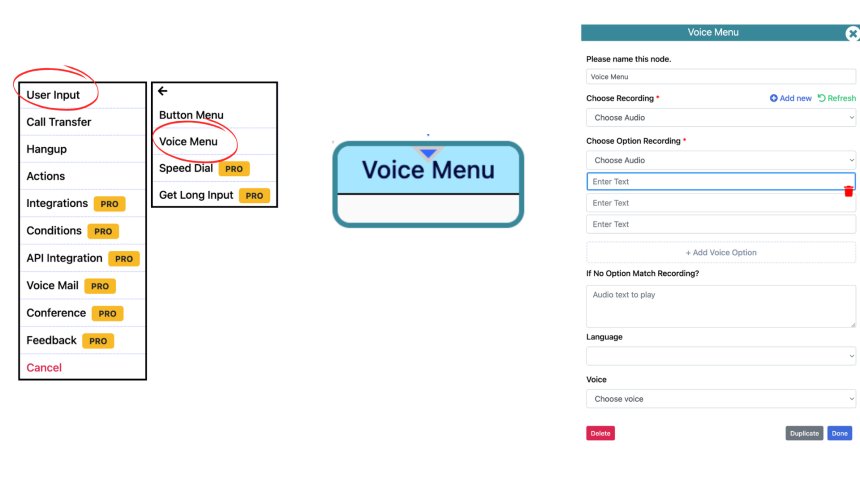
Configuring Voice Menu in User Inputs
- Add Name to this Node: Add a name for this button/node.
- Choose Recording: Select the greeting recording for this particualar node.
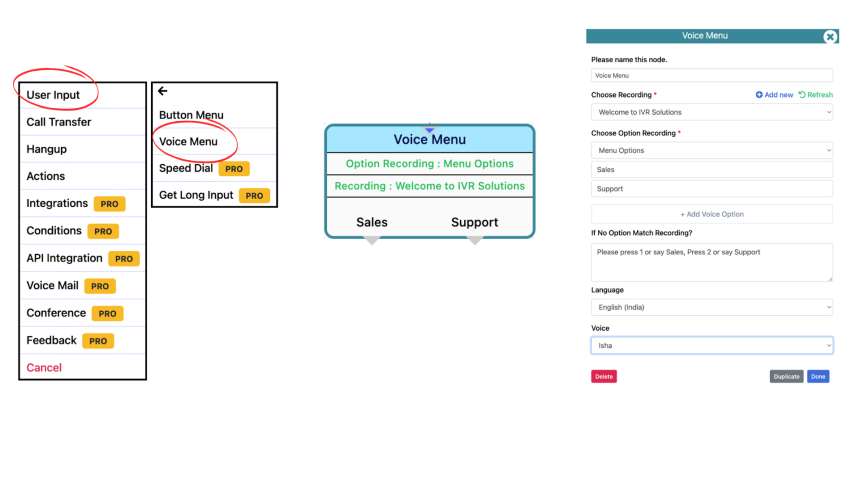
- Choose Option Recording: Type the keyword which you want user to say in order to proceed to particular node. (Example: Sales, Support)
- If no option match recording: Select recording to play if customer says something which is not relatable to the keywords you have provided.
- Select Language & Voice: Choose from available languages and voices to play no option match recording content which you have typed above.
Speed Dial
Alongside button menus, speech inputs, extensions, and PIN validation, IVRSolutions also allows you to configure Speed Dial as a User Input. This option gives both agents and callers the ability to quickly transfer a call to another extension using a short dial code. It’s an advanced shortcut that improves call handling efficiency.
What is Speed Dial in User Inputs?
Speed Dial enables live transfer during a call using a simple keypad code:
- Dial *<last 3 digits of extension> to redirect the call.
- Example: Dial *135 → Call immediately goes to the agent at extension 135.
👉 Unlike predefined menu options, Speed Dial allows dynamic call routing by entering an extension directly.

Get Long Input
While simple button menus like Press 1 for Sales, Press 2 for Support work well for routing, sometimes you need to capture longer inputs from callers. This could be a PIN, account number, booking ID, or any other numeric detail. The Get Long Input option in User Inputs allows you to do exactly that, making your IVR smarter and more secure.
What is “Get Long Input”?
The Get Long Input option lets callers enter a sequence of digits instead of just one button press.
- Example: “Please enter your 6-digit account number followed by #.”
- Example: “Enter your 4-digit PIN to validate your account.”
The system then captures and processes this input to validate, store, or route the caller.
How It Works
- IVR Prompt: Caller is asked to enter a numeric value.
- Example: “Please enter your 4-digit PIN.”
- Caller Input: Caller types the digits on their keypad.
- System Handling:
- Saves the input into a variable (e.g., Caller.account_id = 1234).
- Validates against API or stored database.
- Uses the input for routing decisions (e.g., correct PIN → proceed, incorrect PIN → error message).
Use Cases
- Banking & Finance
- Caller enters account number → IVR checks balance via API.
- E-commerce
- Caller enters order ID → IVR fetches order status.
- Healthcare
- Patient enters booking ID → IVR confirms appointment.
- Telecom
- Caller enters mobile number → IVR verifies registered user.
Best Practices
- Always tell users the expected length of input (e.g., “Please enter your 6-digit order ID”).
- Provide a retry option if the input is invalid.
- Store inputs in variables to reuse later in the same call flow.
- Combine with conditions & APIs for dynamic validation.
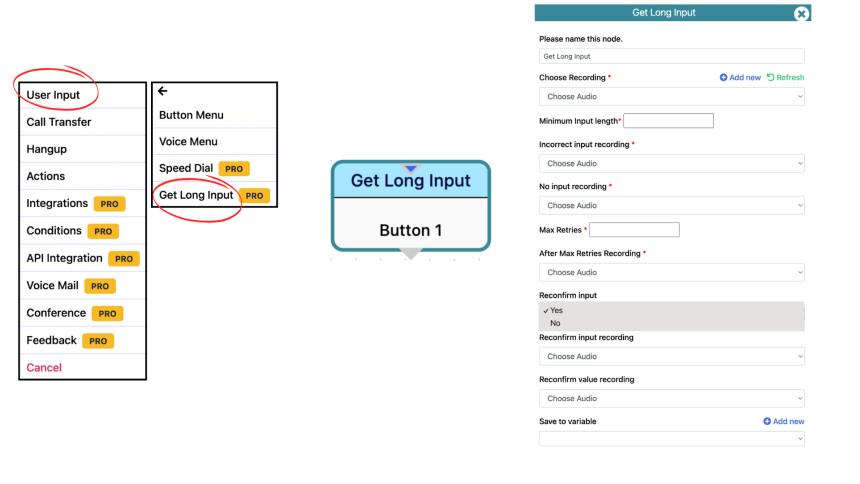
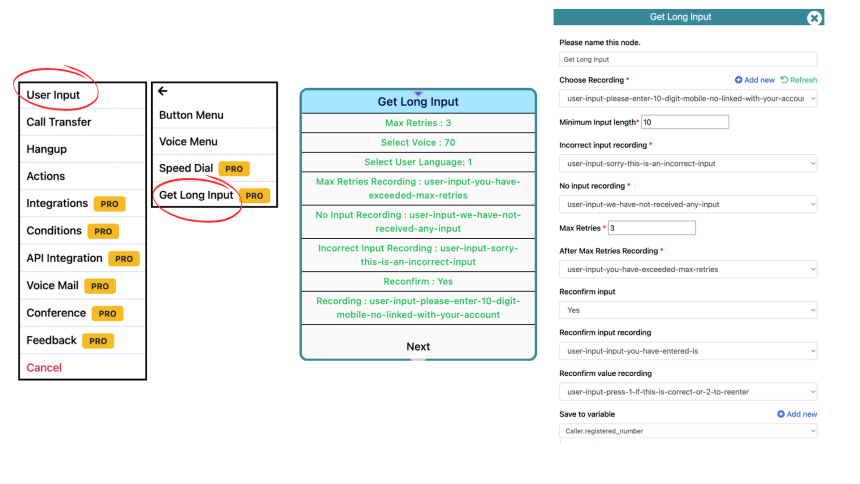
Configuring Long Inputs in User Inputs:
- Add Name to this Node: Add a name for this button/node.
- Choose Recording: Select the recording for this particualar node.
- Maximum Input Length: Provide a length for taking input. (Example: 10 for asking mobile number/ 4 for asking PIN, etc.)
- Incorrect Input Recording: Select a recording in case user enters incorrect input(lets say he enters only 9 digits in mobile number so a recording can be played - sorry this is an incorrect input, please try again).
- No Input Recording: Select a recording in case user doesn't enter any input.
- Maximum Retries: Enter a number you want to allow your user to try(Example - 2 or 3)
- After Maximum Retries Recording: Select a recording which plays once the user has reached the maximum retries(Example - You have reached the maximum number of tries, please try again later).
- Reconfirm Input: Select Yes if you want your user to hear what he/she has typed in pr No if you don't want user input to be reconfirmed.
- Reconfirm Input Recording: Select recording which you want to play while reconfirming input(Example - Input you have entered is).
- Reconfirm Value Recording - Select recording which you want to play while reconfirming values(Example - Press 1 if this is correct or Press 2 to re-enter)
- Save To Variable: Add or select the variable in which you want to save the user's input so that it can be used in your flow for API's, etc)
Call Transfer
The Call Transfer feature in IVRSolutions allows you to redirect calls dynamically during an IVR flow. Whether you want to route calls to a group of agents, a specific person, sequentially across a team, or even to your AI bot, Call Transfer ensures that every caller is connected to the right destination.
We’ll explain all available transfer options, special cases like attended vs. missed calls, and how live speed dial works.
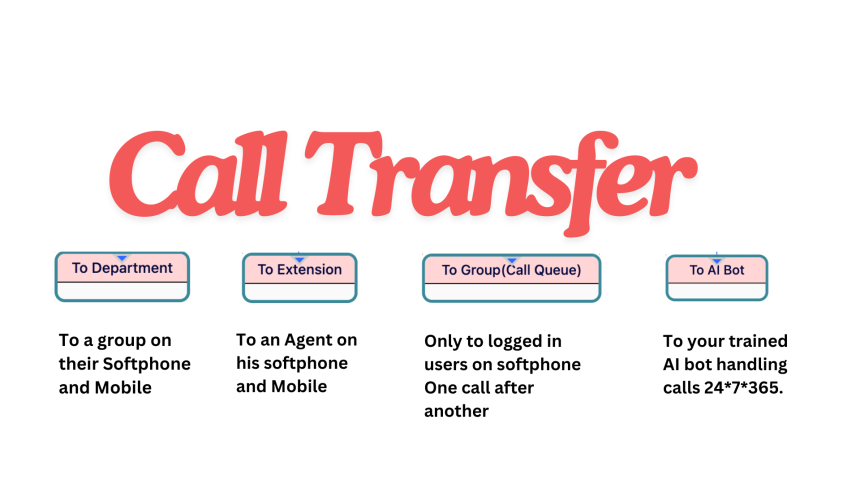
Call Transfer Options1. Transfer to a Department
- Routes the call to all agents within a department.
- Call routes to agent as per department settings.
👉 Best for: Sales or Support teams where multiple people handle the same type of calls.
2. Transfer to Extension
- Routes the call directly to one assigned agent through extension number.
- Rings to agent as per agent settings.
👉 Best for: Dedicated account managers or team leads.
3. Transfer to Group(Using Call Queue)
- Calls are kept in queue and answered as soon as the next available gets free from previous call.
- Only logged-in users on softphones are included.
👉 Best for: Companies where call volume is high.
4. Transfer to AI Bot
- Send calls to your trained AI bot that can handle FAQs, order checks, COD verifications, or appointment bookings.
- Works 24×7×365, ensuring no call goes unanswered.
👉 Best for: Automating repetitive queries and after-hours coverage.
Configuring Call Transfer to Department
- Add Name to this Node: Add a name for this call transfer/node.
- Choose Recording: Select the recording for this particualar node(Example - Please wait while we are transferring your call).
- Choose Department: Select the department on which you want the calls to be forwarded. Ensure you have added a department in advance, if not learn how to create and enable department in IVRSolutions.


How to Add and Manage Departments in Your IVRSolutions Panel
Departments help you organize your call center or business team into functional groups suc...
How to Use the "Login as Agent" Option in Your IVRSolutions Panel
Sometimes, administrators need to see exactly what an agent is experiencing inside the IVR...
How to Add and Manage Audio in the IVRSolutions Panel
Audio messages are the backbone of your IVR system. They are used to greet customers, play...
How to Edit or Delete Agents in Your IVRSolutions Panel
After adding agents to your IVRSolutions panel, you may sometimes need to update their det...