
How to Manage Working Hours of Agents in Your IVRSolutions Panel
Managing agent working hours is essential to ensure that calls are routed only when your team is available. By setting working hours in the IVRSolutions panel, you can define when an agent can take calls and prevent missed or unanswered calls during off-hours. In this guide, we’ll walk you through the steps to configure and manage agent working hours effectively.
Managing agent working hours is essential to ensure that calls are routed only when your team is available. By setting working hours in the IVRSolutions panel, you can define when an agent can take calls and prevent missed or unanswered calls during off-hours. In this guide, we’ll walk you through the steps to configure and manage agent working hours effectively.
Note: If an agent’s working hours are not configured, the system will automatically consider the agent available 24×7.
Login to your IVRSolutions account using your registered email and password.
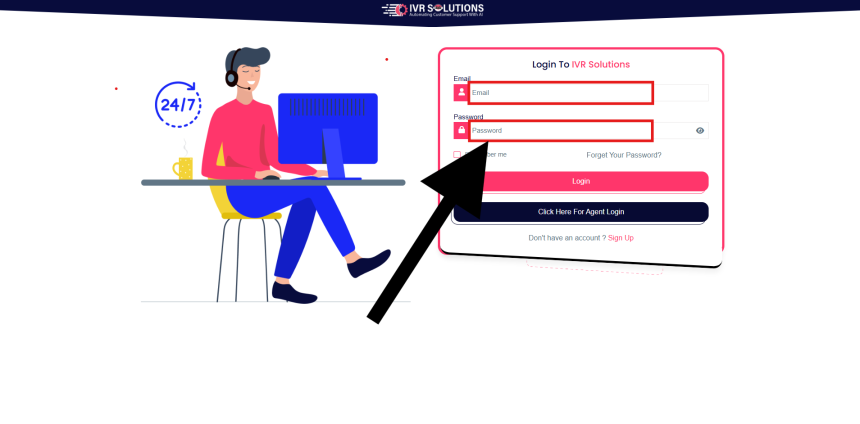 Step 2: Open the Agents Section
From the dashboard, go to the Agents tab on the left-hand side. This section displays all agents added to your panel.
 Step 3: Select an Agent to Configure Working Hours
Choose the agent whose working hours you want to set or update. Click on the Edit (✏️) button next to their name.

 Step 4: Add Time Zone
Choose the correct Timezone for the agent so that working hours are applied accurately, especially if your team operates across different regions.
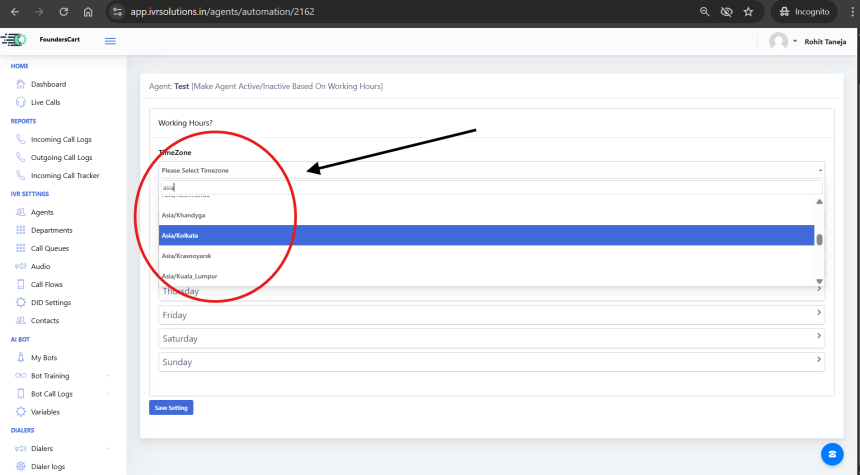 Step 5: Define Working Hours (Including Breaks)
In the agent’s edit settings, locate the Working Hours or Availability section.
- Select the Days of the Week the agent will be available.
- Set Start Time and End Time for each selected day.
- If your agents have breaks (like lunch breaks), you can add multiple time ranges for the same day.
- Example:
- 10:00 AM – 2:00 PM
- 3:00 PM – 7:00 PM
- This way, calls won’t be routed to agents during their break time(2-3 pm in our example).
- Save the changes once done.
 Step 5: Save and Verify
After saving, the working hours will be updated. The system will only route calls to the agent during their configured availability, respecting multiple time slots if added.
Note: If an agent’s working hours are not configured, the system will automatically consider the agent available 24×7.
By managing working hours for your agents, you ensure better call distribution, reduce missed calls, and maintain a professional call flow. The ability to add multiple time ranges per day gives you flexibility to manage breaks, part-time shifts, and custom schedules with ease.
For more step-by-step tutorials, visit learn.ivrsolutions.in
How to Add and Manage Audio in the IVRSolutions Panel
Audio messages are the backbone of your IVR system. They are used to greet customers, play...
How to Add Agents to Your IVRSolutions Panel (Step-by-Step)
In this tutorial we will guide you on how you can add agents in Ivr Solutions through your...
Advanced Call Flow Features in IVRSolutions
While a Basic Call Flow is useful for simple “Press 1 for Sales, Press 2 for Support” menu...